

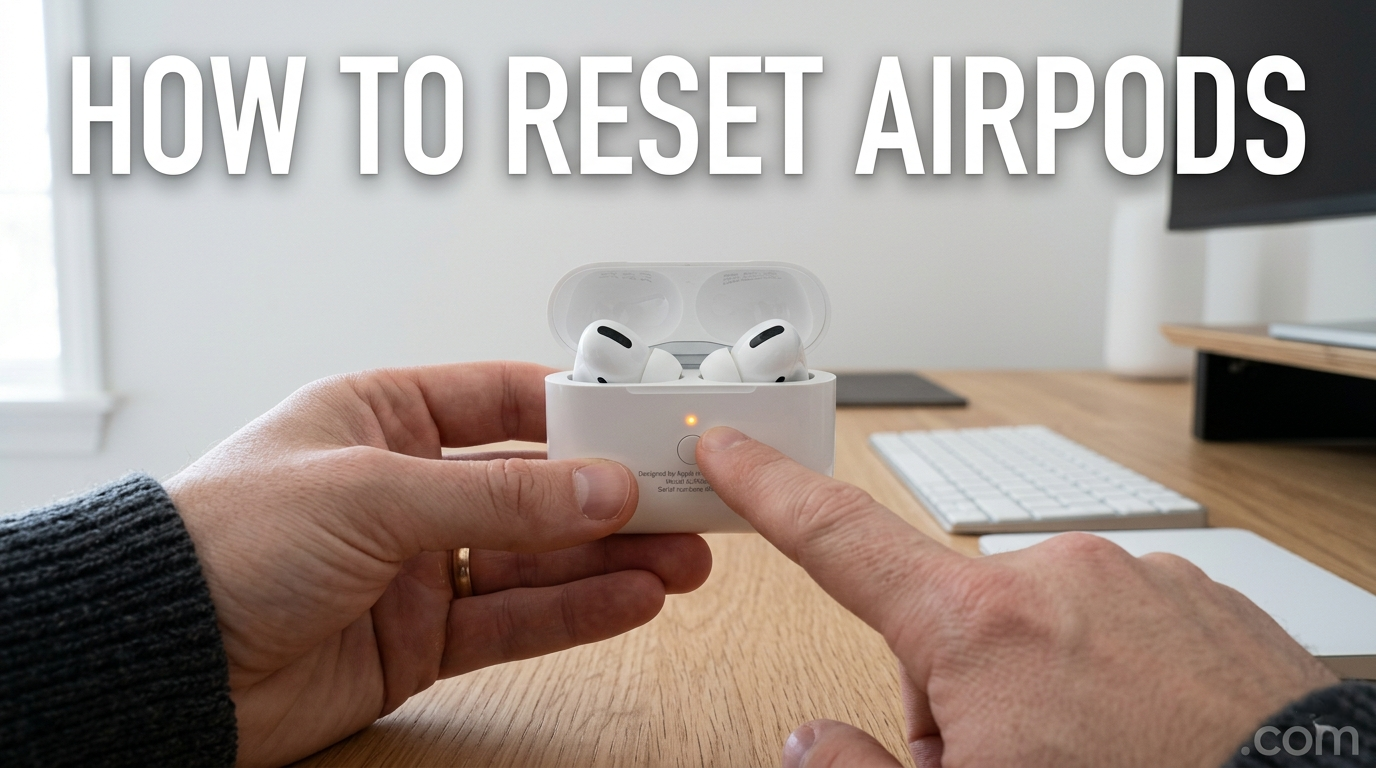
Learning how to reset AirPods is essential for anyone using Apple’s wireless earbuds, especially when facing connectivity issues, sound imbalance, or pairing errors. AirPods are designed to deliver a seamless wireless experience, but like any Bluetooth device, they can occasionally develop glitches that affect performance. A reset often restores them to factory settings and resolves many common problems quickly.
In the modern digital ecosystem, AirPods are widely used with iPhones, iPads, Macs, and even non-Apple devices. Because they rely on Bluetooth synchronization and iCloud pairing, small software bugs or connection conflicts can build up over time. Resetting the device is a reliable troubleshooting method that clears these issues and refreshes the internal system.
Why AirPods Need a Reset in the First Place
There are several reasons why users search for how to reset AirPods, and most of them are related to performance inconsistencies. One of the most common issues is unstable Bluetooth connectivity, where AirPods frequently disconnect or fail to connect to a device. This often happens after software updates or prolonged usage.
Another major reason is audio performance problems. Users may experience low volume in one earbud, delayed sound, or uneven audio output between left and right AirPods. These issues are usually caused by minor software conflicts that a reset can fix effectively.
Battery-related glitches are also a frequent concern. Sometimes AirPods show incorrect battery percentages or one earbud drains faster than the other. In such cases, resetting helps recalibrate the system and restore normal battery reporting and performance.
Understanding the AirPods Reset Process
The AirPods reset process is designed to erase all previous connections and restore the earbuds to factory condition. This means that all paired devices are removed, and the AirPods behave as if they are brand new. This is useful not only for troubleshooting but also when selling or transferring ownership of the device.
Technically, resetting AirPods clears the Bluetooth pairing cache stored inside the earbuds and the charging case. This ensures that any corrupted or outdated connection data is removed. Once reset, the AirPods must be reconnected manually or through Apple’s automatic pairing system.
Apple has designed this process to be simple and user-friendly so that even non-technical users can perform it without difficulty. However, following the correct steps is important to ensure the reset is successful and complete.
Step-by-Step Guide to Reset AirPods Properly
To reset AirPods, the first step is to place both earbuds inside the charging case. This ensures they are properly powered and ready for the reset process. It is also recommended to close the lid for a few seconds before starting to stabilize the internal system.
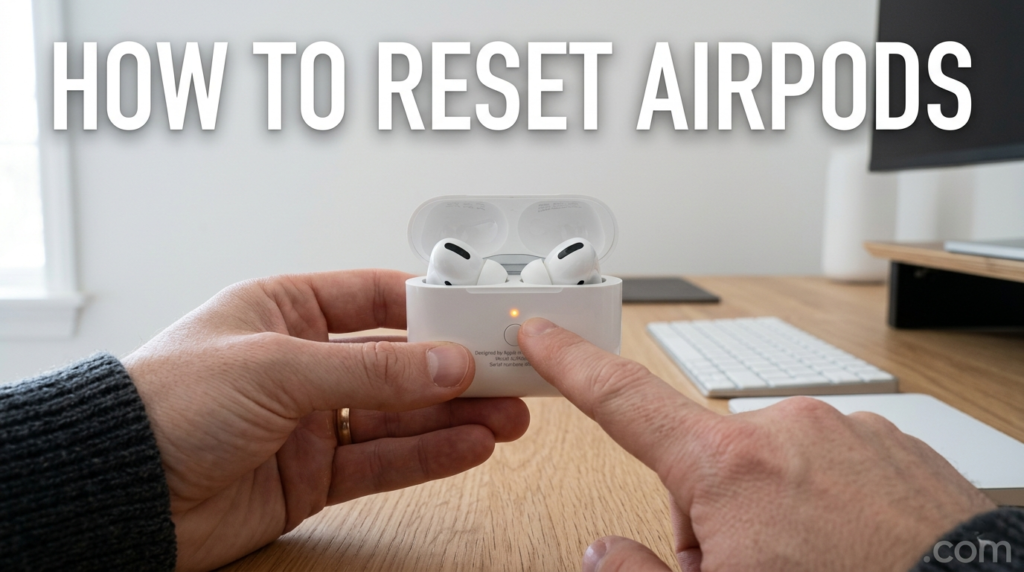
Next, open the lid of the charging case and locate the small setup button on the back. Before pressing it, you should go to your iPhone or iPad Bluetooth settings and tap “Forget This Device” for your AirPods. This step removes the existing pairing profile from your device.
Finally, press and hold the setup button on the back of the case for about 15 seconds until the status light flashes amber and then turns white. This light sequence confirms that the AirPods have been successfully reset and are now ready for a fresh connection.
How Resetting AirPods Fixes Common Issues
Resetting AirPods is one of the most effective troubleshooting methods because it resolves multiple issues at once. One of the most common problems it fixes is Bluetooth pairing failure, where AirPods refuse to connect or repeatedly disconnect from devices.
It also resolves audio synchronization issues where sound may lag or become uneven between the two earbuds. This is often caused by minor software bugs that accumulate over time, especially when switching between multiple devices.
Another important benefit is improved device responsiveness. After a reset, AirPods often feel more stable, with faster connection times and smoother transitions between devices linked through the same Apple ID.
Resetting AirPods Pro and Advanced Models
AirPods Pro and newer models follow the same basic reset process but include additional features that may benefit from a reset, such as Active Noise Cancellation and Transparency Mode. When these features start behaving inconsistently, a reset can often restore proper functionality.
The internal system of AirPods Pro relies on more advanced sensors and software calibration compared to standard AirPods. This means that a reset not only clears Bluetooth data but also refreshes internal audio processing settings.
According to Apple’s official support guidance, the amber-to-white light transition on the charging case confirms that the reset has been completed successfully, ensuring that all advanced features are also restored to default behavior. Apple
What Happens After You Reset AirPods
Once AirPods are reset, they are completely cleared of all previous connections. This means they no longer recognize any devices they were previously paired with. Instead, they enter a ready-to-pair state similar to when they were first purchased.
When you bring the AirPods near an iPhone or iPad, a setup animation automatically appears on the screen. This allows for quick reconnection with just a few taps, making the process extremely user-friendly within the Apple ecosystem.
If you are using non-Apple devices, you will need to manually pair them through Bluetooth settings. Even though some Apple-exclusive features may not be available, basic audio playback and microphone functions will still work normally.
Common Mistakes to Avoid When Resetting AirPods
One of the most common mistakes users make is not forgetting the device in Bluetooth settings before starting the reset. This can cause pairing conflicts and prevent the AirPods from connecting properly after the reset is completed.
Another mistake is not ensuring that the AirPods are sufficiently charged. If the battery is too low, the reset process may fail or stop midway, leading to incomplete restoration of factory settings.
Users also sometimes release the setup button too early. The correct reset requires holding the button until the amber light appears and then turns white. Skipping this step can result in a partial reset that does not fix existing issues.
Conclusion: Why Resetting AirPods Is a Powerful Fix
Understanding how to reset AirPods is one of the most useful troubleshooting skills for any wireless earbud user. It provides a quick and effective solution to a wide range of issues, including connectivity problems, audio glitches, and battery inconsistencies.
Because AirPods rely heavily on software integration and Bluetooth communication, small errors can develop over time. A proper reset clears these errors and restores the device to its original performance state.
With correct usage and occasional resets when needed, AirPods can continue delivering smooth, high-quality wireless audio for a long time, making them one of the most reliable audio accessories in the modern tech ecosystem.
READ MORE: VELORATIMES
